Keypress
A keystroke visualizer for macOS, designed for live demos, tutorials, and screen recordings.
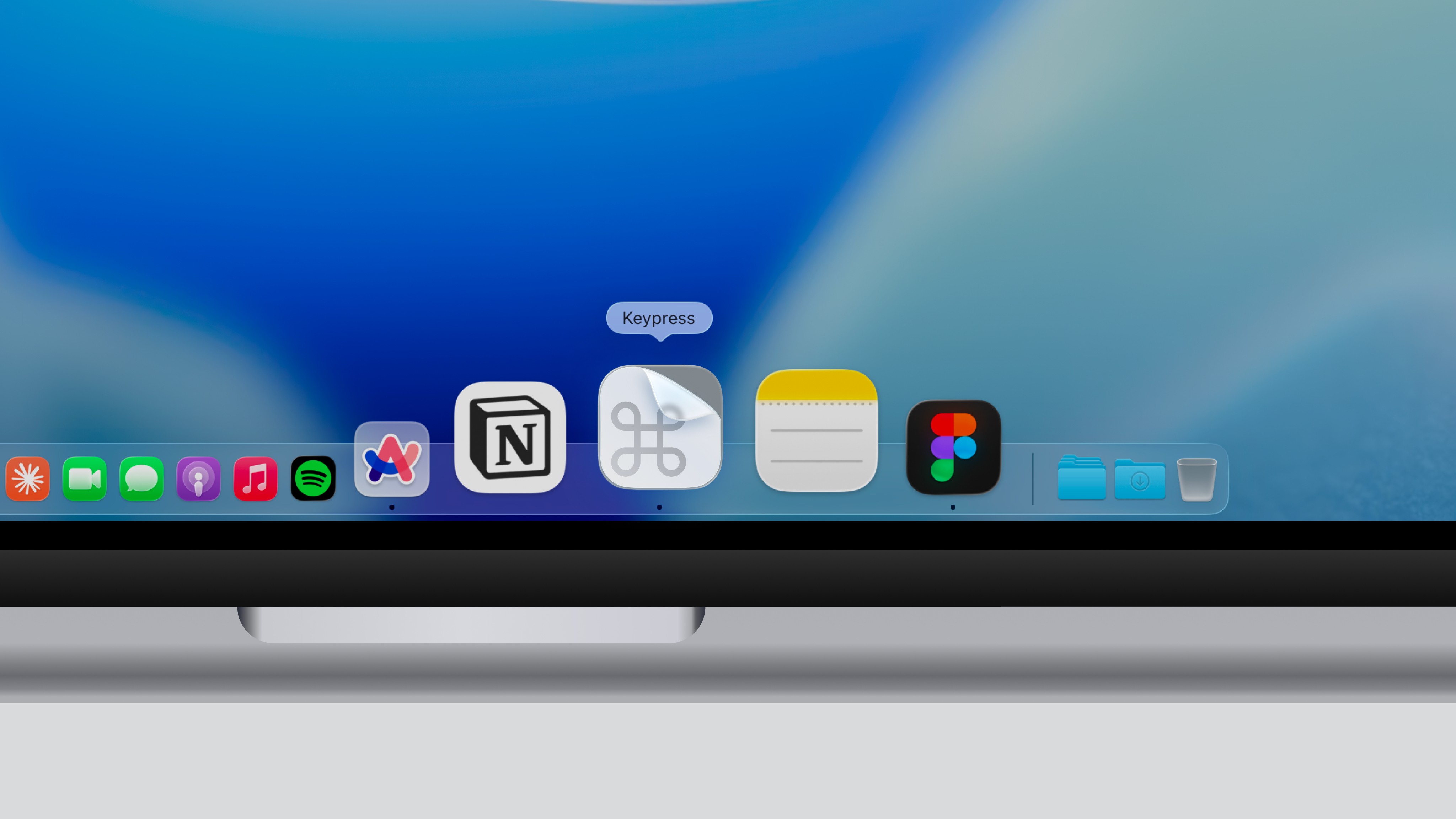
Why I built this
As a Creative Technologist, I often run demos and training sessions for enterprise clients, explaining our tools. Most of our clients are global, so most of these sessions happen over video calls. I'd share my screen, walk through a workflow, and use keyboard shortcuts without thinking twice. ⌘K, ⇧⌘T, ^⌘C, Option-drag. Second nature to me but invisible to everyone watching.
I kept noticing the same thing: people would ask me to repeat an action because they couldn't tell which keys I pressed. Sometimes they'd go quiet and I'd realize later they'd been lost for the last five minutes. My team had the same problem. We all knew the tools so well that we forgot the audience didn't. The shortcuts felt trivial and natural to us, but for someone learning ProtoPie for the first time, missing a single command meant losing the thread of the entire demo.
I looked for apps that could cast keystrokes on screen and found a few existed. Most were subscription-based, overpriced for what they did, or designed like they hadn't been touched since 2015. So I decided to build my own.
Keypress overlay during a ProtoPie workflow demo
What Keypress does
Keypress displays what the user is typing as a floating overlay on the screen. A user presses ⌘C, and a keycap visualization appears at the corner of their display, then fades out. No setup, no configuration required to start, no account. Open the app and it works.
I built it for screen recordings, live demos, and tutorials, anywhere a viewer needs to see what keys are being pressed, so the audience can follow along without asking what was pressed.
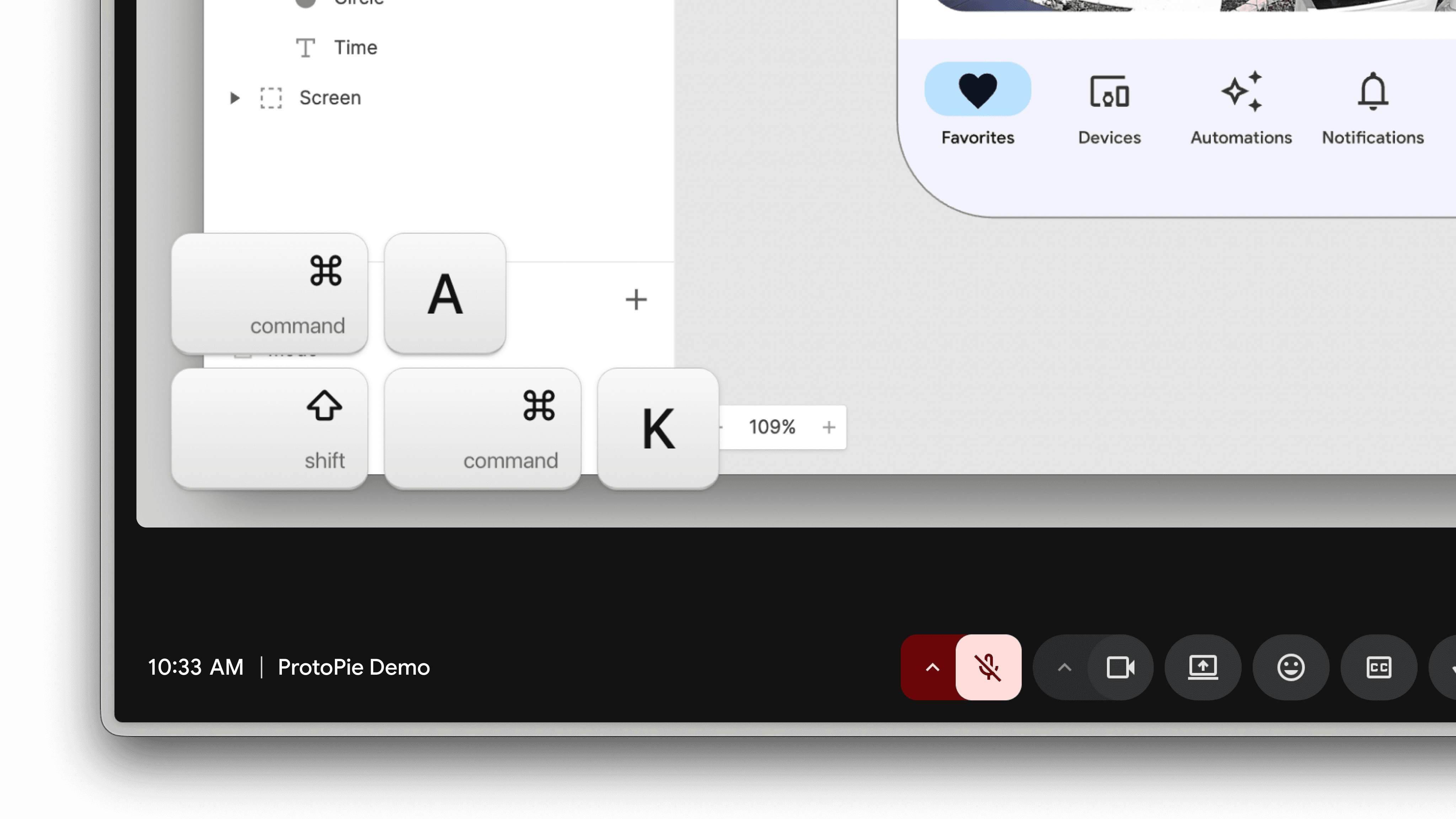
Keypress overlay showing ⇧⌘K on screen during a live demo (Stack mode)
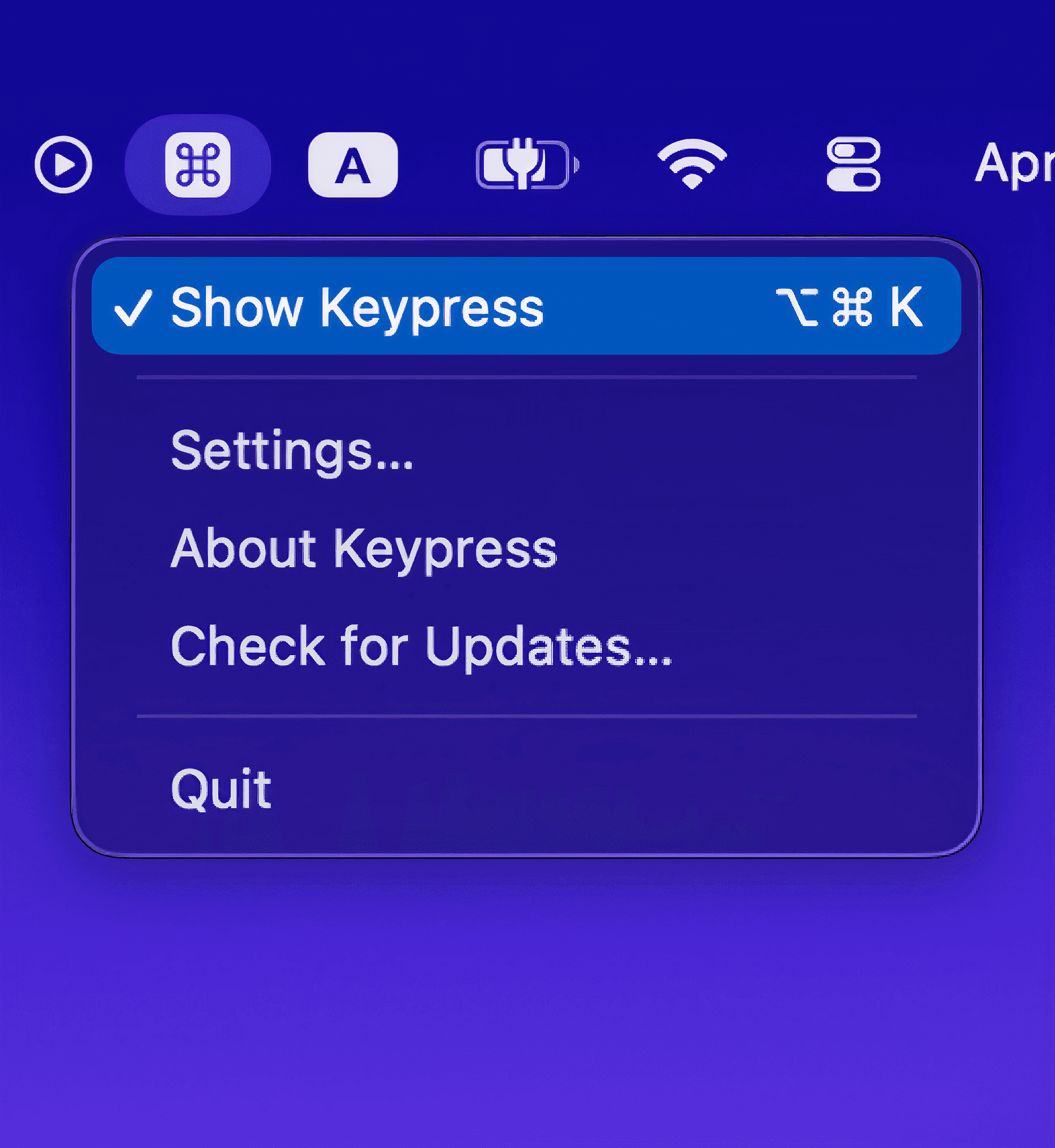
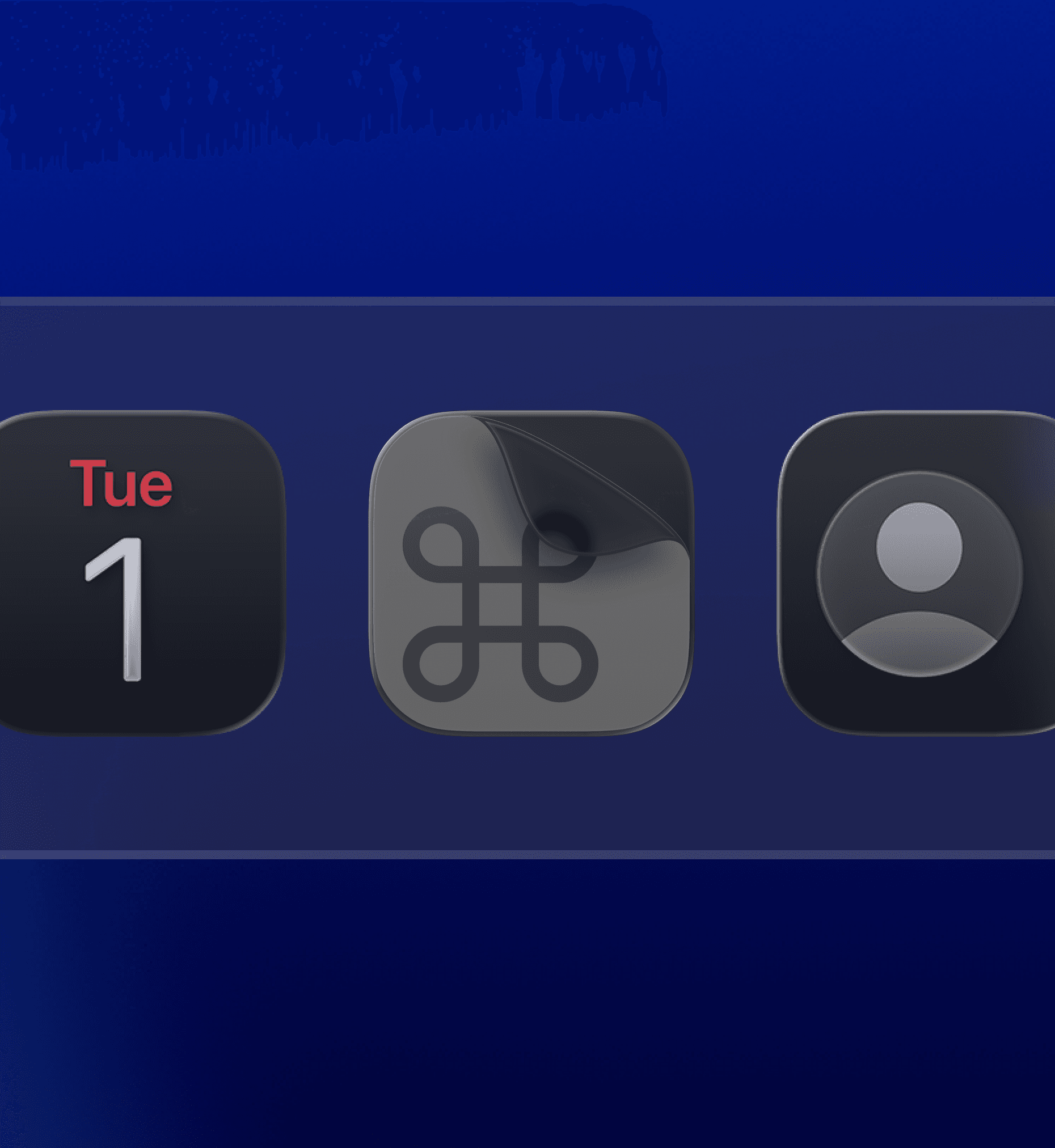
Quick access from the menu bar and dock icon adapting to light and dark themes
Design
As a Mac app, every keystroke renders as a keycap styled after the Apple Magic Keyboard. Modifier keys like ⌘, ⌥, ⇧, ⌃ show their symbol and name stacked, matching the physical key layout. I gave single-character keys a fixed-width pill so the overlay doesn't jump around between narrow and wide characters.
I designed the shift key to resolve to the typed character: ⇧ / displays as ? instead of ⇧ /. But ⌘⇧/ shows all three keycaps, because that's a shortcut, not a character. Caps Lock carries a green LED dot that reflects the actual system state.
I also included four theme modes: Light, Dark, Auto, and Custom. For Custom, users pick a base color and every keycap style, gradient, text, border, and shadow derives from that single color using luminance calculations. Light text on dark backgrounds, dark text on light ones.
Keycap design details and theme adaptations
Settings
For a clean user experience, I implemented only the necessary options. Two display modes let users either show the latest keystroke only or stack up to four in a history.
I set up six preset positions, and added a drag-to-reposition mode where users can place the overlay anywhere on screen and press Esc to save, useful when recording a specific area of the display.
Multi-monitor support lets users pick which display to show the overlay on. I made the display duration and opacity adjustable so users can tune visibility to their setup.
I made every control in the settings window follow Apple Human Interface Guidelines, matching the dimensions and behavior of native macOS System Settings. By default, Keypress won't detect or display keyboard input during password entry.
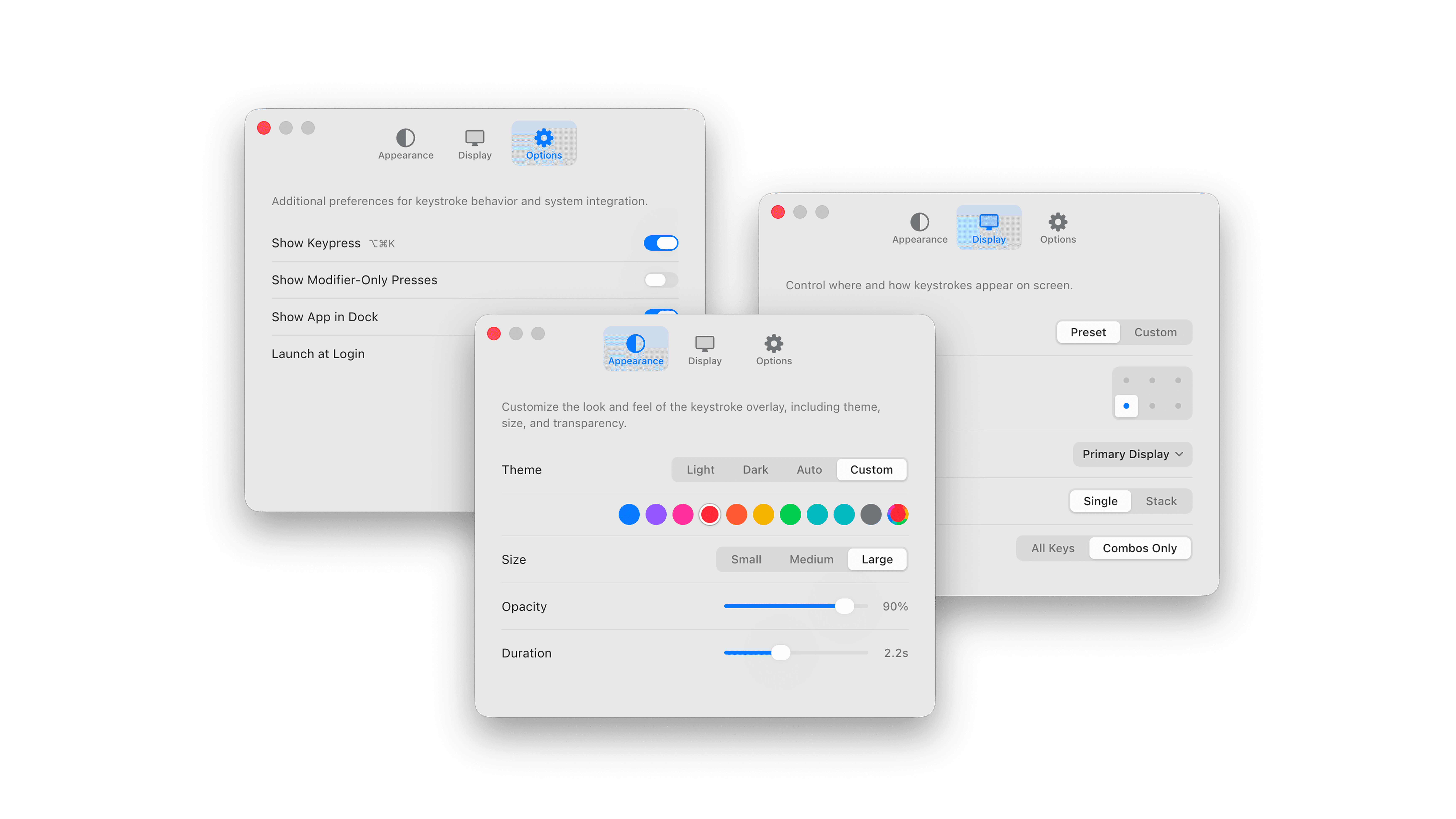
Keypress settings with only the essentials
Under the hood
The macOS function row was a rabbit hole. Keys like brightness, Mission Control, Spotlight, and volume don't behave like normal keyboard input. The key listener library I used reported them as "unknown" with no useful data. So I patched the library's native C code to capture those system-level keys and pass them through to the app. Every function row key now shows its correct Apple SF Symbol on screen.
That kind of detail ran through the whole app. For example, I added a 150ms debounce so the key combo appears as a single unit. Without it, ⌘ would flash as its own keycap for a split second before the C arrives, because the modifier fires first.
When a user holds a key down, the overlay doesn't spawn duplicate pills. It detects the repeat, appends a ×2, ×3 badge to the existing one, and resets the fade timer. Every icon inside the overlay is built through DOM methods instead of injecting raw HTML, keeping the app secure under a strict content policy. The app builds separate binaries for Apple Silicon and Intel Macs, with a post-build script that merges both into a single auto-update manifest.
Function row keys rendering with SF Symbol icons
What happened after
Seeing others use software I built is one of the rewarding parts of this work. Keypress became an official internal tool at ProtoPie, where my team uses it for every client demo and webinar. The QA team picked it up for screen recordings of bug reproductions, and the marketing team for product demo videos.
I didn't write a proposal. I didn't pitch it in a meeting. I noticed a problem that my team had been walking past for months, built something to solve it, and shipped it. That loop, from noticing to shipping, is the part of this work I care about most.
Credits
Mickey Oh
Icon Design
Tay Jung